Not surprisingly, AstroPrint recently made some great new changes to one of their platform features after realizing that their users definitely needed improved resources for organization. We checked in with AstroPrint blogger Dilanka again (just recently we much enjoyed his cheat sheet for 3D printing tips), coming back to his always entertaining and informational ‘buffet’ for a new topic.
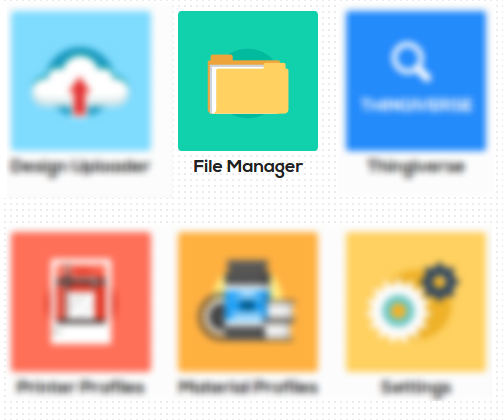
AstroPrint users gave the company a heads up on some frustrations they were experiencing, and now, by obviously popular demand—and true necessity—they have a new option in the form of project folders. The processes for using AstroPrint’s File Manager and folders are quite easy, and you are probably already familiar with these processes for your PC applications regarding work and home.
Dilanka leads us through the processes clearly as we gain an understanding for the new changes. If you are starting a new 3D printing project, this is a great time to walk through and sample the new feature for yourself by using it. So, let’s see what happens!
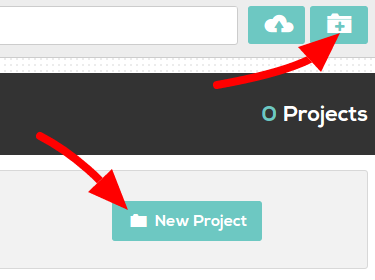
“Once you create your project(s), you’ll see them above the rest of your designs in the File Manager in a dedicated section called ‘My Projects,” says Dilanka. “In this section, you can also rename or delete your projects.”
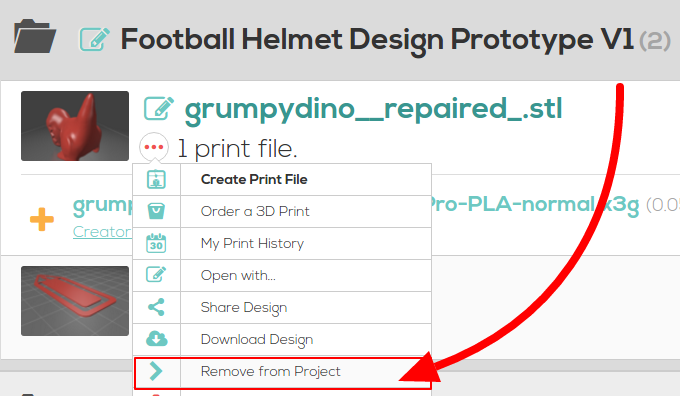
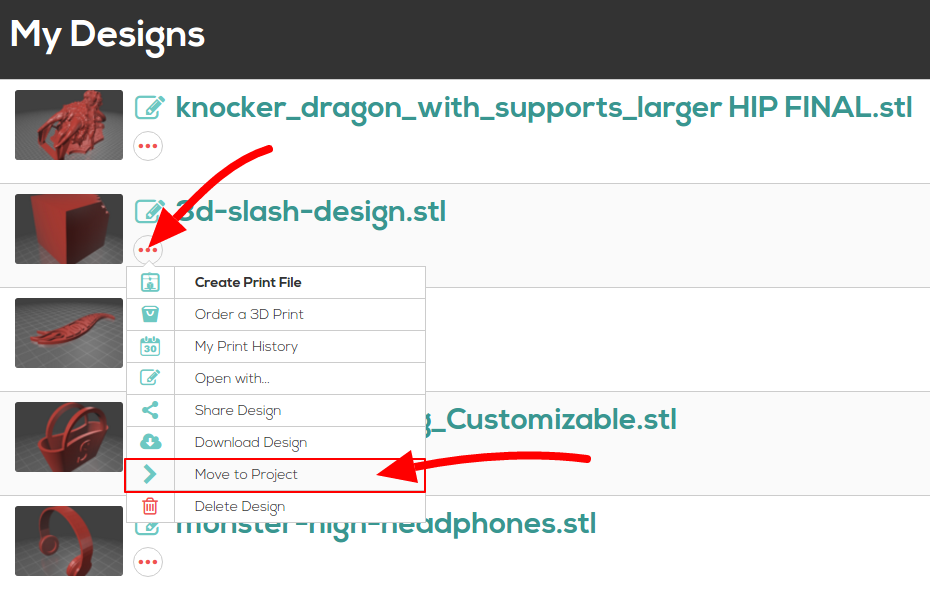
At this point, organization begins to creep in nicely as you can also move other existing files into project folders. If you’d like to move a design from one of your Project Folders to the File Manager, simply click the circle with the 3 red dots to bring up the context menu, then choose “Remove from Project“. This will remove the file from a Project and place it back in the File Manager.
There is a major warning to be heeded here—and while you will be asked for confirmation—realize that if you do decide to delete an actual project folder, you will indeed say goodbye to that folder and everything within it for good!
AstroPrint, offering a cloud-based platform very popular with users, is a company we follow often, reporting as they’ve created dynamic partnerships, new products, and continued to add and offer helpful new settings and features, and give us tips like the ones we see here, as well as that of new apps. Once again, Dilanka offers a wealth of information as AstroPrint makes even further strides in empowering their users. The company does however offer the disclaimer that this is a first attempt at rectifying the organizational issue, and they expect to keep making refinements—so if you have more of that great feedback, it’s quite welcomed in their forum or on Twitter. Are you glad to hear about these new updates? Discuss in the AstroPrint File Management forum over at 3DPB.com.